Site Layout
From Showit Manual
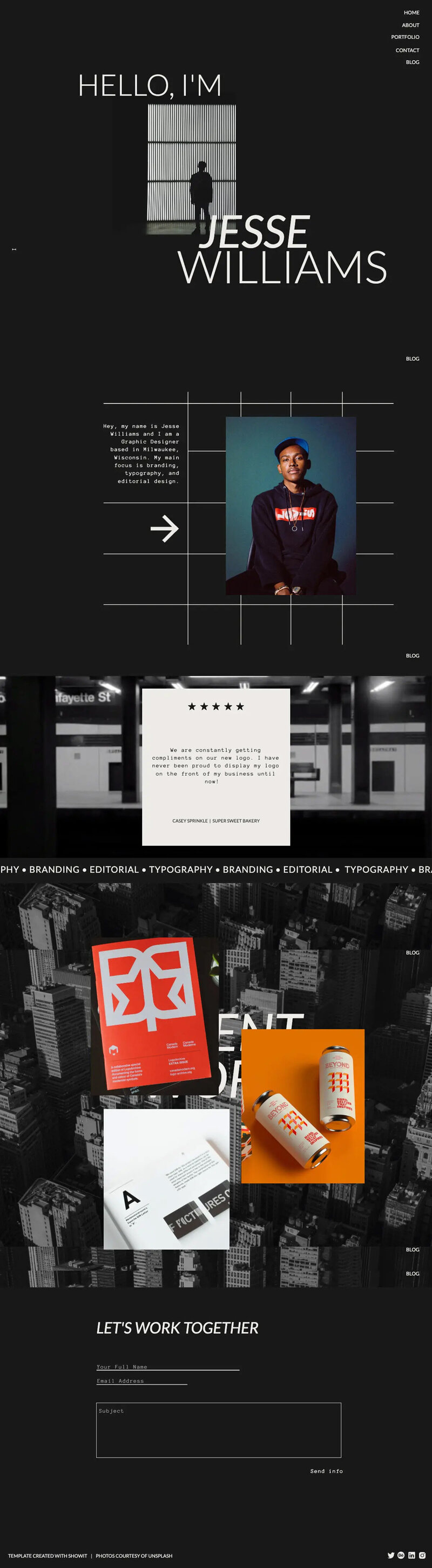
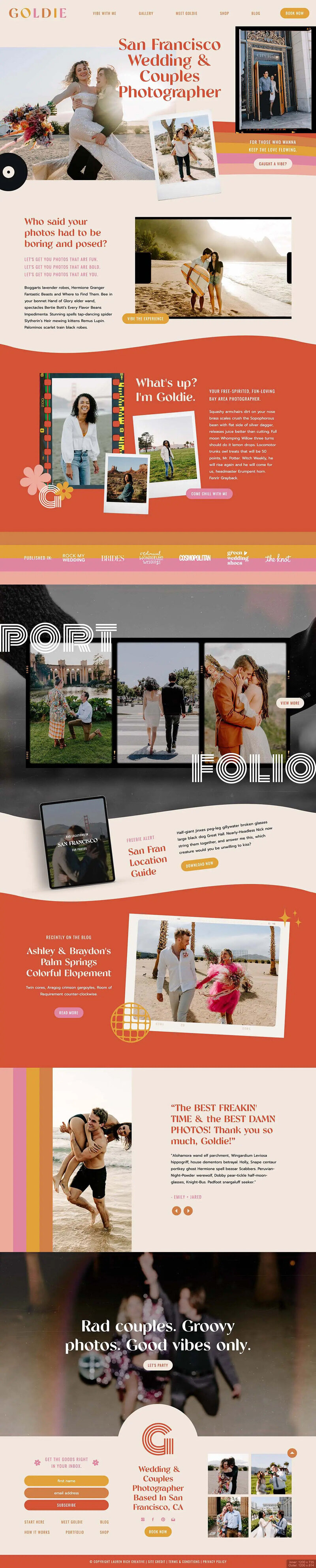
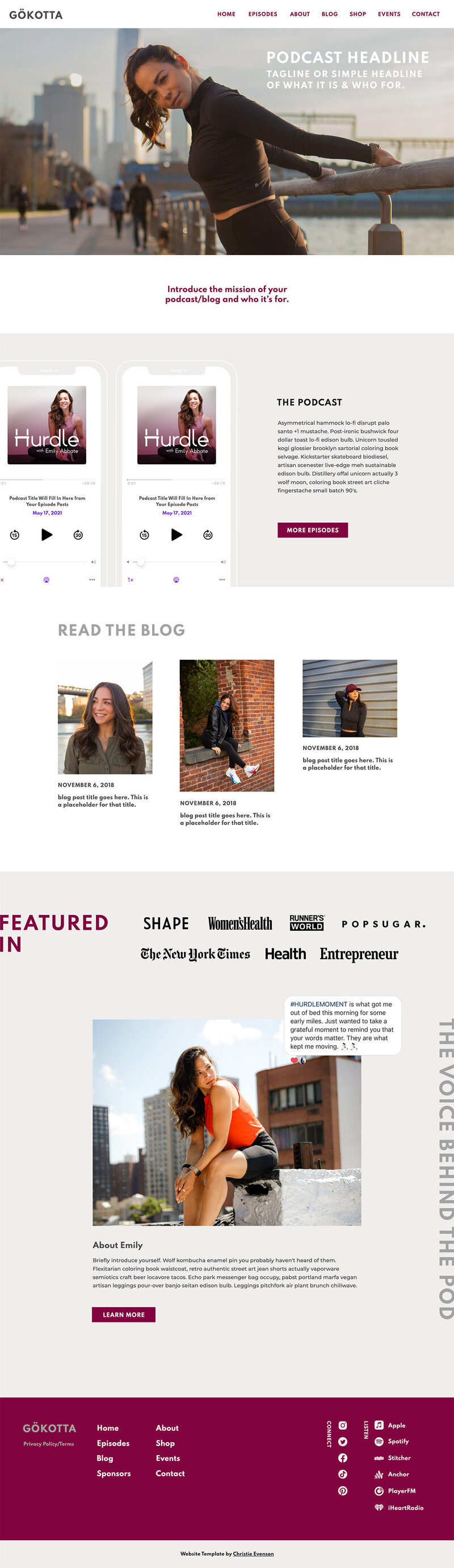
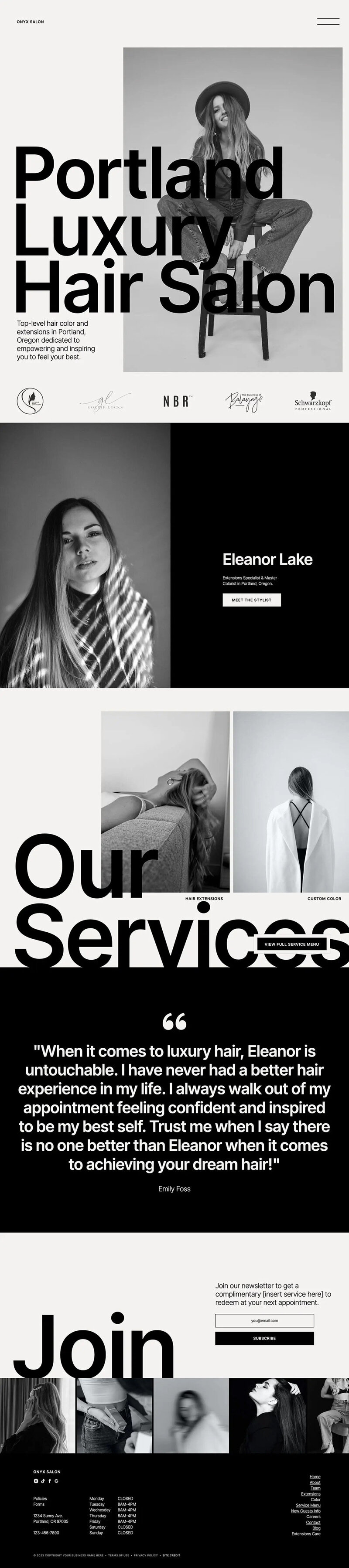
One of the first goals in building Showit was to design a way to build full browser sized websites that would look good at almost any resolution. A typical web page is a fixed pixel size, so a bigger monitor may have lots of extra space and a small monitor may require scroll bars. With Showit, the content is resized to fit whatever resolution, even a wide monitor or a browser window that is opened narrow. Below are some over exaggerated browser aspect ratios to illustrate how content fills the entire browser window:
To do this, we created a few different ways to layout your site content explained below.
1) Layers - All content from images to video to other flash content that you drag onto a page is a layer of your page. If a layer is not locked then it will scale and position relative to the other elements on the page in the center of the browser window.
2) Edge Locked Layers - Layers that you want to float independent of the page content but basically stay against a side of the browser window can be locked to a side with the "Locking" check boxes on the "Layout" tab for a selected layer. If you want the layer to stay in a corner, lock it to two sides. If you want it to stretch, lock to two opposite sides. Locking to two sides will distort an image, so we recommend only using this for lines or boxes or graphics that can be stretched and not look funny. Locking is great for things like a site menu bar or a logo that you want to stay in a corner.
3) Background - The background sizes to fit the entire browser window which will NOT make layers line up relative to the background. The background is meant to fill the entire browser window, so depending on whether the browser is opened tall or wide will determine what parts of the image will be cropped. You can choose how you would like the image to be cropped by using the drop down next to the background and choose options such as locking it to the top, bottom, corner or even stretch it. If you want your background image to line up with the layers, put the background image on the page as a layer and just use a solid color for the background.
I hope that helps explain a few of these sizing concepts because when you are designing it often feels that the page is a fixed size, but it's good to keep in mind that people have different sized monitors and open their browsers in different ways. A great way to test your site is to click the preview button and then drag the bottom right corner of the window so you can see what your site will look like when sized narrow or wide.
The full sized-scaling site does provide for an amazing experience across many different screen sizes but it's a little tricky initially to understand how to design for it, especially when deciding what to use for your background. Hopefully this gives you a good understanding and some ideas as you build your Showit website!